How to Build Your First AI Workflow in Under 5 Minutes
Learn how to create and deploy production-ready AI workflows without coding. Step-by-step guide for beginners using Flowdrop's visual workflow builder.

What is an AI Workflow?
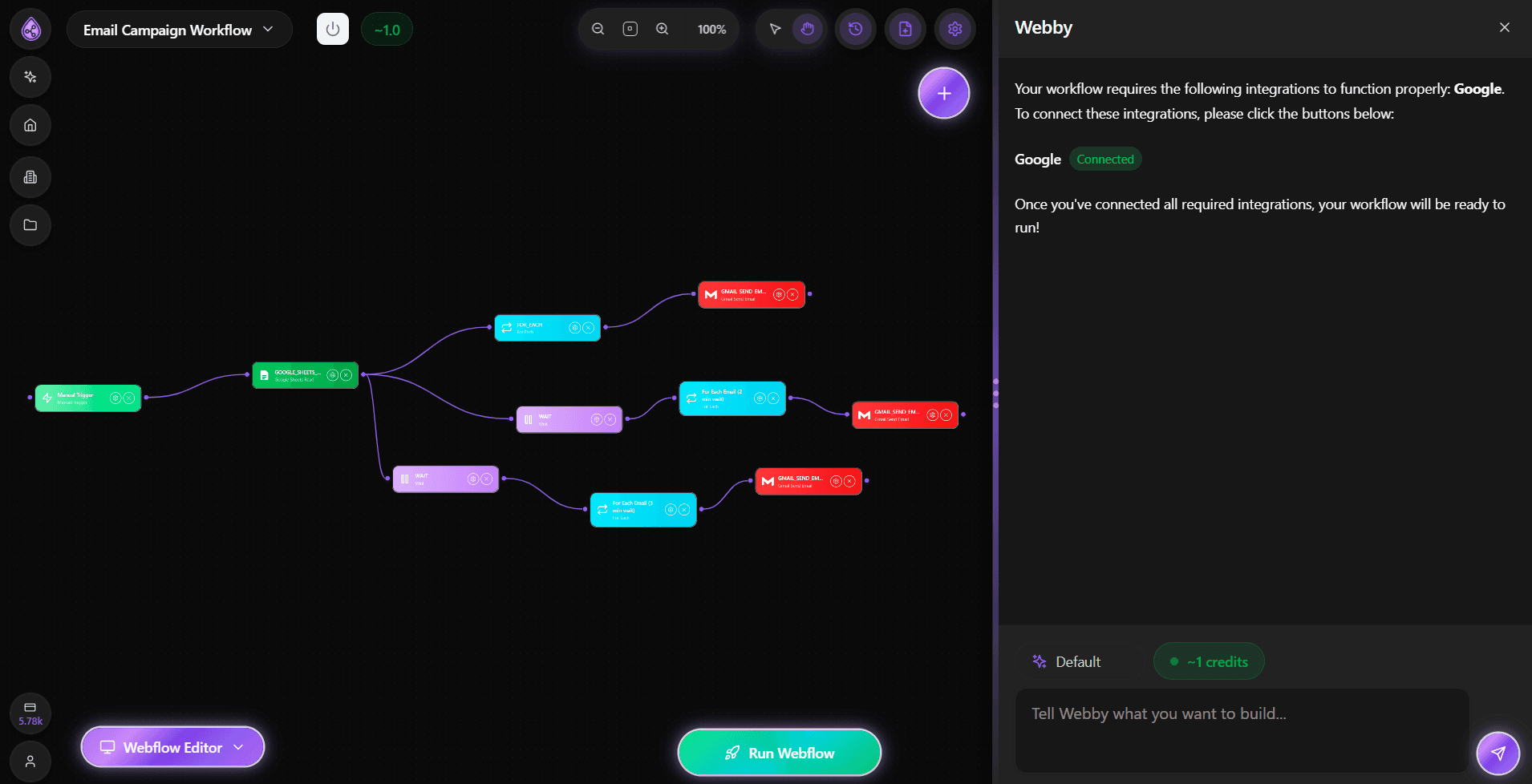
An AI workflow is an automated process that uses artificial intelligence to perform tasks without human intervention. Think of it as a smart assistant that can read emails, analyze data, make decisions, and take actions based on your rules.
With Flowdrop, you can build these workflows visually—no coding required.
Before we dive into the tutorial, here's why AI workflows are game-changing for businesses:
- Save Time: Automate repetitive tasks that take hours manually
- Reduce Errors: AI follows rules consistently without mistakes
- Scale Operations: Handle 10x more work without hiring more people
- Work 24/7: Your workflows run around the clock, even while you sleep
Prerequisites
Before starting, you'll need:
- A Flowdrop account (sign up at flowdrop.xyz)
- 5 minutes of your time
- An idea of what you want to automate
Step 1: Choose Your Trigger
Every workflow starts with a trigger—the event that kicks off your automation.
In Flowdrop, click "New Workflow" and select a trigger:
- Webhook: Trigger from external services
- Schedule: Run workflows on a timer (hourly, daily, etc.)
- Email: Start when you receive specific emails
For this tutorial, let's use a Schedule trigger to check for new content daily.
// Example: Schedule trigger configuration
{
  "frequency": "daily",
  "time": "09:00",
  "timezone": "America/New_York"
}
Step 2: Add AI Processing
Now comes the magic—adding AI to process your data.
Drag an LLM Prompt block onto your canvas and connect it to your trigger. This block lets you use ChatGPT, Claude, or other AI models.
Here's an example prompt:
Analyze this content and extract:
1. Main topic
2. Key insights (3-5 points)
3. Sentiment (positive/negative/neutral)

Content: {{trigger.data}}
The {{trigger.data}} part is dynamic—it pulls data from your trigger automatically.
Want your workflow to take different actions based on AI results? Use the If/Else block.
For example:
- If sentiment is positive → Post to social media
- Else → Send to review queue
Step 4: Take Action
Finally, add action blocks to complete your workflow:
- Send Email: Notify your team
- Update Spreadsheet: Log results to Google Sheets
- Post to Slack: Share updates in channels
- HTTP Request: Integrate with any API
Before going live:
- Click "Test Run" to see your workflow in action
- Check the output from each block
- Make adjustments if needed
- Click "Deploy" to activate
That's it! Your workflow is now running in production.
Here's a complete workflow you can build in 5 minutes:
Trigger: Schedule (daily at 9 AM) ↓ Action: Fetch webpage content ↓ AI: Analyze content with LLM Prompt ↓ Condition: If new content detected ↓ Action: Send summary email
This workflow monitors competitor blogs, extracts insights, and emails you a daily summary—completely automated.
Advanced Tips
Once you're comfortable with basics:
- Use For Each loops to process multiple items
- Chain multiple AI blocks for complex analysis
- Store data in variables for reuse across blocks
- Set up error handling with try/catch blocks
❌ Mistake 1: Not testing before deploying ✅ Solution: Always run test executions
❌ Mistake 2: Forgetting to handle errors ✅ Solution: Add If/Else blocks to catch failures
❌ Mistake 3: Overcomplicating workflows ✅ Solution: Start simple, add complexity gradually
What's Next?
Now that you've built your first workflow, explore:
- AI Blocks and Nodes - Complete reference
- Workflow Builder Basics - Advanced features
- JavaScript Expressions - Dynamic data manipulation
Ready to build your first AI workflow? Sign up for Flowdrop and start automating in minutes—no credit card required.
Have questions? Contact our team or check out our documentation for detailed guides.
Frequently Asked Questions

About Flowdrop Team
We build AI workflow automation tools for non-coders. Our mission is to make AI accessible to everyone through intuitive visual builders.