How To Automate PDF To Excel In 2 Minutes (No Code Required)
Stop wasting hours on manual data entry. Learn how to automate PDF to Excel conversion in under 2 minutes with AI-powered workflows. No coding skills needed.
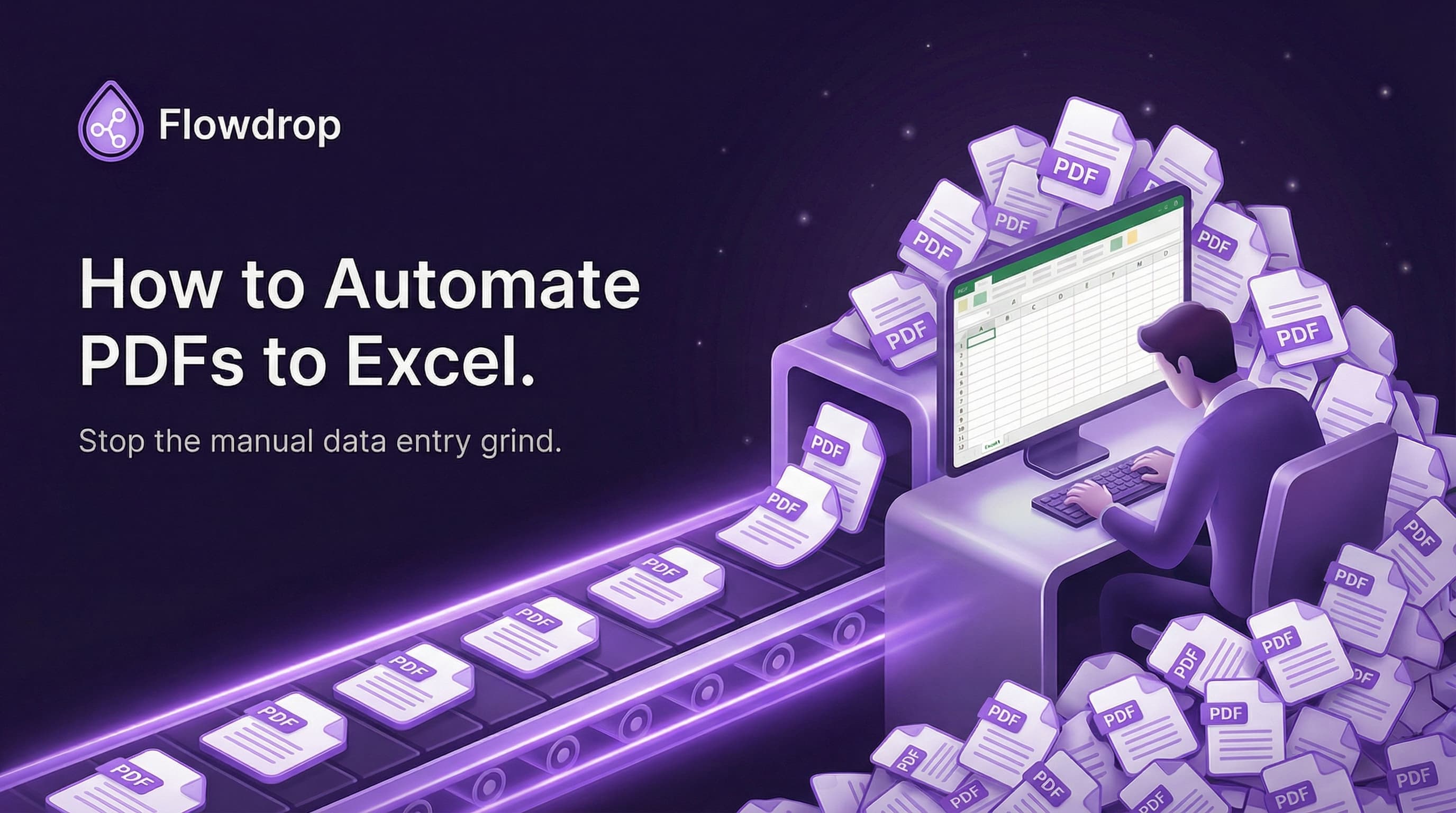

Look, we've all been there. You get a PDF invoice. Maybe it's got 50 line items. Maybe it's got 200. And someone decided the best way to organize this info is to make you manually type every single item into Excel.
One by one. Row by row. For hours.
It's the kind of task that makes you question your life choices. You didn't take that job to be a human copy machine. But here you are, stuck doing data entry like it's 1997.
Here's the good news: you can automate PDF to Excel in about two minutes. No coding. No weird tech skills. Just a simple workflow that does the boring stuff while you do literally anything else.
Let me show you how.
Before we get into the how, let's talk about why this matters for your business productivity.
Say you get 20 invoices per week. Each one takes 30 minutes to process manually. That's 10 hours every single week just moving data from one place to another.
Over a year? That's 520 hours. That's 13 full work weeks spent on copy-paste.
Now imagine getting all that time back. What could you do with an extra 13 weeks? Maybe close more deals. Maybe build something new. Maybe just leave work at a normal time for once.
That's what happens when you automate PDF to Excel. You get your life back.
Ready to see how fast this actually works? Watch the video below to see it in action:
Try Flowdrop and build your first workflow in the next 5 minutes.
The Old Way vs The New Way
The Manual Method (That Nobody Likes)
Here's how most people handle PDF to Excel right now:
Open the PDF. Open Excel. Start typing. Copy a number. Paste it. Copy another number. Paste it. Miss a decimal point. Start over. Want to cry. Keep going anyway.
Or maybe you're fancy and you use one of those PDF to Excel converter tools. You know, the ones that:
- Cost money per conversion
- Mess up your formatting
- Turn your clean data into random symbols
- Make you fix everything manually anyway
It's better than pure manual work, but not by much. You're still spending way too much time on something a computer should handle.
The Automated Method (That Actually Works)
Here's what it looks like when you automate this with Flowdrop:
You upload a PDF. The workflow reads it. Pulls out all the data. Creates a new spreadsheet. Names it whatever you want. Drops every line item into the right spot. Done.
Total time? About 10 seconds.
And once you build the workflow, you can run it over and over. Every invoice. Every receipt. Every PDF that shows up in your inbox.
Watch it work: One of our users processes 50 invoices in 10 minutes now. Used to take her entire workday. That's 7 hours back every single week.
Okay, let's build this thing. I'm going to walk you through the exact steps.
Step 1: Describe What You Need
Start by telling Flowdrop what you want in plain English. Something like:
"I want to upload a PDF invoice and have it pull out all the items and prices into a Google Sheet."
That's it. You don't need to know APIs or nodes or any of that stuff. Just talk like a normal human.
Flowdrop will build the first draft of your workflow based on what you said. The AI figures out all the technical parts while you just describe the outcome you want.
Step 2: Add The Specific Details
Now you can get more specific about your PDF to Excel automation. Maybe you want:
- The spreadsheet named after the invoice file
- Each item in its own row
- Columns for item name, price, and quantity
- Date fields formatted a certain way
Just add those details in the chat. The workflow updates as you go. You're basically having a conversation about what you need, and Flowdrop figures out how to make it happen.
No dragging nodes around. No watching tutorial videos. Just describe it and watch it build.
Step 3: Test It With A Real PDF File
Upload an actual invoice. Run the workflow. Watch it work.
You'll see it read the PDF, grab the data, create the spreadsheet, and fill everything in. The whole thing takes maybe 15 seconds.
If something looks off, you can tweak it. Change how the data shows up. Add a step to clean up formatting. Adjust column names. It's totally flexible.
Pro tip: Test with your messiest PDF first. If the workflow can handle that, it can handle anything.
Step 4: Run It Whenever You Need
Once it works, you're done building. Now you just use it.
Every time you get a new PDF, upload it and run the workflow. Or set it up to trigger when files show up in a folder. Or connect it to your email so it runs when invoices arrive.
However you want to use it, the workflow is ready. And you can process unlimited PDFs once it's built.
Let me walk you through a real use case we see all the time.
The Problem
Say you run a business that gets vendor invoices. Each invoice is a PDF with dozens of line items. You need all that info in your company spreadsheet so you can track spending.
Right now, someone on your team spends 20 hours a week doing this manually. That's half their job. Just moving numbers from PDFs into Excel.
The Solution With Flowdrop
Here's what happens when you automate PDF to Excel with Flowdrop:
The workflow reads each invoice PDF. It pulls out every line item—the prices, the dates, the vendor names, all of it. Then it creates a new Google Sheet named after the invoice. Every item goes into the right row and column with proper formatting.
What used to take 20 hours now takes maybe an hour. And that hour is just uploading files and checking that everything looks good.
The Results
Your team member gets 19 hours back every week. That's time they can spend on stuff that actually matters. Like talking to vendors. Or finding cost savings. Or catching errors before they become problems.
Plus, the data is cleaner. No typos from manual entry. No missed line items. No formatting issues. Just accurate data, every time.
Want to build this exact workflow? Get started with Flowdrop and get your first automation running today.
Common Questions About PDF To Excel Automation
Does This Work With Messy PDFs?
Yeah, it handles most formats. Even the weird ones where the data is all over the place. The AI figures out what's what and structures it correctly.
Scanned PDFs work too. Forms, invoices, receipts, reports. If you can open it as a PDF, the workflow can probably read it.
What If My PDFs Have Different Layouts?
You can build one workflow that's smart enough to handle variations. Or make a few different workflows for different types of docs. Either way works.
Most people start with one workflow and then tweak it as they see different formats. Takes about 30 seconds to adjust.
Can I Customize How The Excel File Looks?
Totally. You control the column names, the order, the formatting, everything. You can even copy from a template spreadsheet if you want everything to match your company style.
Want the date in a specific format? Easy. Need calculations in certain columns? Done. Want it to skip certain rows? No problem.
What If I Need To Clean The Data First?
Easy. Add a step that cleans up the data, reformats dates, does calculations, removes duplicates, whatever you need. The workflow can handle all that before writing to the spreadsheet.
You can even add approval steps if you want to review data before it gets written to Excel. Total control over the whole process.
How Much Does PDF To Excel Automation Cost?
Flowdrop starts at $9 per month. That gets you enough credits to process hundreds of PDFs. Compare that to paying someone $20 per hour to do manual data entry, and it pays for itself after like 30 minutes of saved work.
Plus you can try it for free first. Build the workflow, test it with your actual files, see if it works for your use case.
Here's the thing about most automation tools. They make you feel dumb.
You open them up and there's a million buttons and settings and technical stuff. You need to understand APIs. You need to read docs. You need to basically learn to code just to move some data around.
The Flowdrop Difference
Flowdrop works differently. You just describe what you want. It builds the workflow. You test it. You use it. That's the whole process.
No nodes to connect. No triggers to configure. No API keys to hunt down. Just chat about what you need and let the tool figure out the technical stuff.
Over 500 teams already use Flowdrop to automate their PDF processing. They're not developers. They're regular people who were tired of wasting time on manual work.
Built For Real People, Not Developers
You don't need to know how to code. You don't need to understand how APIs work. You don't need to watch a bunch of tutorial videos.
If you can describe what you want in a sentence, you can build it in Flowdrop. That's the whole idea.
We built this because we were tired of automation tools that required a computer science degree to use. Automation should be easy. It should just work.
If you're tired of manually moving data from PDFs to Excel, here's what to do:
Step 1: Sign up for Flowdrop
Step 2: Build your first PDF to Excel workflow using the steps above
Step 3: Test it with a real PDF from your actual work
Step 4: Run it and watch it process your file in seconds
Step 5: Calculate how much time you just saved
Then start using it for real. Every invoice. Every receipt. Every PDF that crosses your desk.
Track how much time you save in the first week. I bet it's more than you expect. Most people save 5 to 10 hours in week one alone.
Beyond PDF To Excel
And then think about what else you could automate. Because once you see how easy this is, you'll start noticing all the other boring tasks you're doing manually.
Email responses. Data cleanup. Report creation. File organization. All that stuff can be automated the same way.
That's when things get fun. When you realize you can get hours back every single week just by describing what you need and letting Flowdrop build it.
Ready to stop doing manual data entry? Try Flowdrop now and build your first workflow right now. Takes less time than processing one invoice manually.
Related Resources
Want to learn more about workflow automation? Check out these guides:
- How to Build Your First AI Workflow - Complete beginner's guide
- AI Blocks and Nodes - Understand what's possible
- Workflow Builder Basics - Master the fundamentals
Have questions about PDF automation specifically? Contact our team and we'll help you get set up.
Frequently Asked Questions

About Flowdrop Team
We build AI workflow automation tools that eliminate repetitive tasks. Our mission is to give you back the hours you waste on manual data entry.